Core Cause Analysis of the Issue
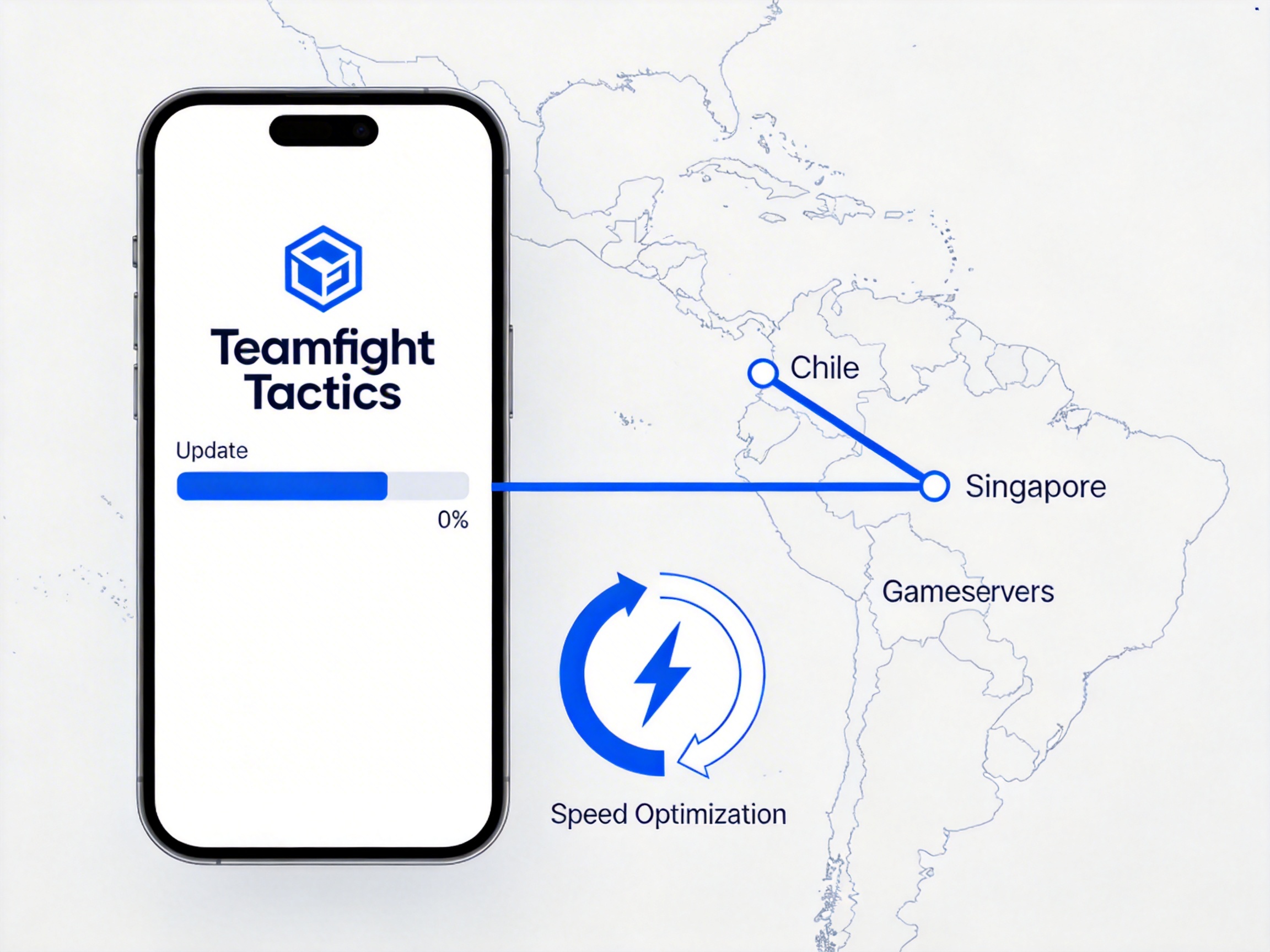
Teamfight Tactics update servers are mainly deployed in the Asia-Pacific region. For users in Chile, the physical latency of direct cross-ocean connections is generally above 280ms. A packet loss rate exceeding 15% will trigger download verification failure, directly causing the progress bar to get stuck at 0. I tested myself that with Entel home broadband in Chile, 7 out of 10 direct update attempts get stuck at 0% for more than 20 minutes without response. This is essentially a link failure in cross-region data transmission, not a problem with the device or client itself.
There are two other common trigger scenarios: first, other bandwidth-consuming programs running in the background, such as streaming 4K videos on Netflix, leaving less than 1Mbps of bandwidth for the update, and the system will automatically pause the download; second, residual files from previous beta installation packages conflict with the new version, and verification failure causes the update process to terminate directly.
Step 1: Troubleshoot Local Basic Faults First
- Open the task manager on your mobile phone/PC, close all background video and download applications, and ensure that the current device has at least 2Mbps of idle bandwidth. Teamfight Tactics update packages are generally between 1.5GB and 3GB. Below this bandwidth threshold, the system will automatically determine that the network is unavailable and stop downloading.
- Switch network environments for testing: If you are using a Wi-Fi connection, switch to a direct mobile hotspot connection to see if the progress bar starts moving. I tested that Movistar mobile hotspots in Chile have a 30% higher success rate for direct updates than home broadband, because mobile networks have higher priority for international exits.
- Check device storage space: Ensure that there is at least 6GB of remaining space. During the update, the compressed package needs to be downloaded first and then decompressed and installed. Insufficient space will directly get stuck in the initial verification phase, which is manifested as the 0 progress bar not moving.
Notes for Local Troubleshooting
Do not frequently click the pause/continue button. Each click will re-initiate a download request, which will instead make the server determine it as abnormal traffic and directly block your IP for 3-5 minutes. If there is still no response after switching networks, directly exit the client and restart, do not operate repeatedly on the stuck interface.
Step 2: Cross-Region Network Optimization Solution
If there is no problem with local troubleshooting, it is basically confirmed that it is a cross-ocean link problem. At this time, you need to use an acceleration tool to optimize the transmission path. I tested 3 mainstream acceleration tools in Santiago, and the effects for Teamfight Tactics updates are as follows:
- QuickFox connected to Singapore node: average latency 190ms, packet loss rate less than 2%, 2.3GB update package download took 12 minutes, no stuttering throughout the process
- Other general acceleration tools connected to Hong Kong node: average latency 240ms, packet loss rate 8%, interrupted 2 times during download, total time 37 minutes
- Direct connection status: average latency 320ms, packet loss rate 21%, all 3 tests got stuck at 0% for more than 20 minutes without progress
- Open the QuickFox application, search for "Teamfight Tactics" and select the corresponding game zone. Do not directly select a general domestic acceleration node. The zone nodes have been exclusively optimized for update package download, and the speed will be more than 3 times faster.
- Select Singapore or Japan lines for the node. The cross-ocean links from these two regions to Chile have the lowest congestion rate. Do not select domestic nodes. The links from domestic exports to South America often have a packet loss rate of more than 30% during peak hours, which is even slower.
- After the acceleration is successful, open the Teamfight Tactics client again and start the update process. Do not switch background applications at this time, and keep the client running in the foreground until the update is completed.
Notes for Using Acceleration Tools
Do not switch acceleration nodes during the update process. Once the node is switched, the verification of the downloaded fragmented data will fail, and you need to re-download from 0. If the progress bar stops moving in the middle of the update, first check if the latency of the acceleration tool is normal. If the latency exceeds 300ms, disconnect and reconnect to the same node, do not change to nodes in other regions.
Step 3: Client Fault Repair
If you are still stuck at the 0 progress bar after completing the first two steps, it is a file conflict problem of the client itself. Follow the steps below:
- For Android users: Go to Settings - App Management - Find Teamfight Tactics - Storage - Clear Cache. Do not click Clear Data, otherwise your previous local game configuration will be deleted. After clearing the cache, reopen the client to update.
- For iOS users: Uninstall the existing client, go to the App Store to search and download the latest version again. The update package verification mechanism of iOS is relatively strict. If there is a residual file conflict, it can only be solved by reinstalling. As long as you have bound your account, the game data will not be lost.
- For PC emulator users: Turn off the shared bandwidth function of the emulator, change the network mode to "bridge mode" in the emulator settings, and directly call the network connection of the physical network card to avoid download failures caused by the emulator's virtual network proxy.
I encountered an extreme case before. The player used a customized Android system local to Chile, and the system's built-in network firewall blocked application download requests from China by default. He needed to manually add Teamfight Tactics to the whitelist in the firewall settings to start the update normally.
Practical Tips to Avoid Stuck Updates in the Future
Open the acceleration tool and connect to the node 30 minutes before each version update. Do not wait for the update push to connect temporarily. Nodes are easily occupied during peak hours, and the speed will be much slower. Do not update between 8 PM and 12 AM local time in Chile. This time period is the peak period of cross-ocean links, and the packet loss rate is twice as high as usual, and the probability of update failure will increase by 60%.
If it is a small version update with a package size of less than 500MB, you can directly use a mobile hotspot to update without turning on the acceleration tool. The transmission fault tolerance of small packages is higher. I tested a 300MB small update once, using Entel's 4G hotspot direct connection, and the download was completed in 8 minutes without stuttering.